Grok MCP Integration
This takes about 3 minutes. You need a Similarweb API key and a Grok account.
Before you start
- API key: in the Similarweb platform, go to User Settings, then API Access, and copy your key.
- Grok connects through the standard remote MCP setup. You only need the server URL and your API key.
Step 1: Open Settings
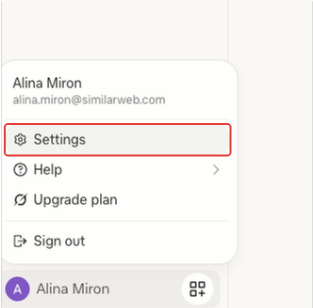
Click your name at the bottom left of Grok, then click Settings.
Step 2: Open Connect Apps
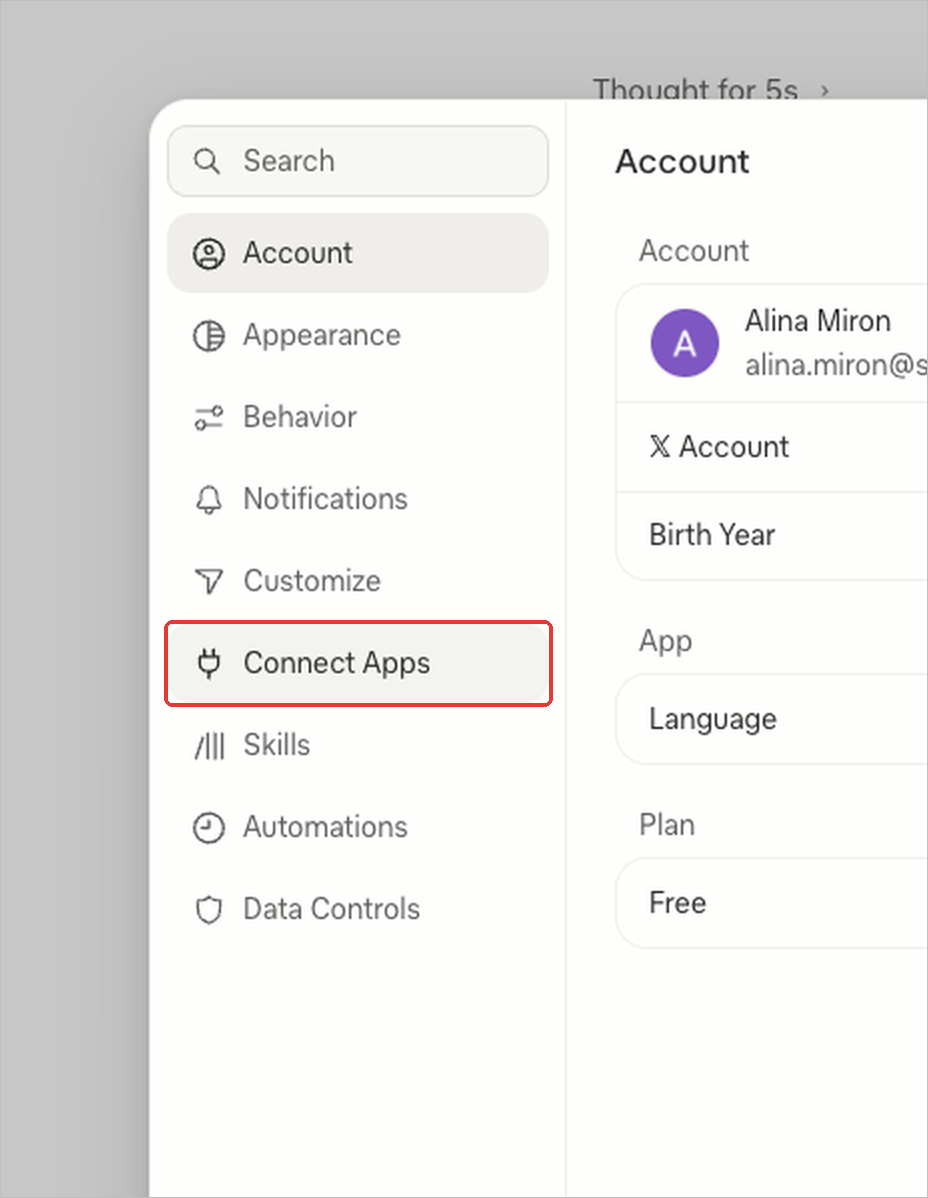
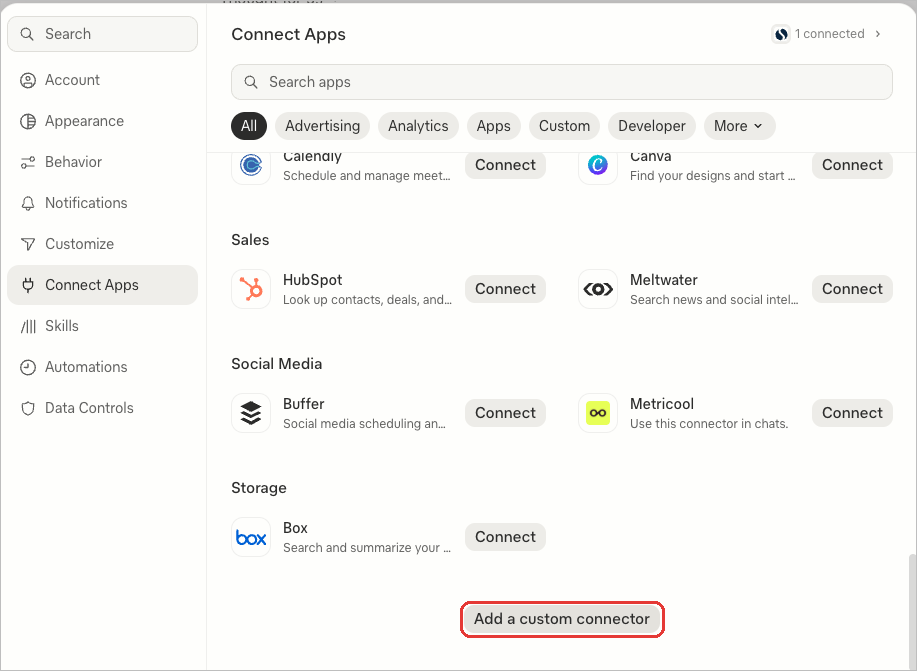
In the left sidebar, click Connect Apps. Scroll all the way down and click Add a custom connector. You land on the Add MCP Server form.
Step 3: Fill in the form
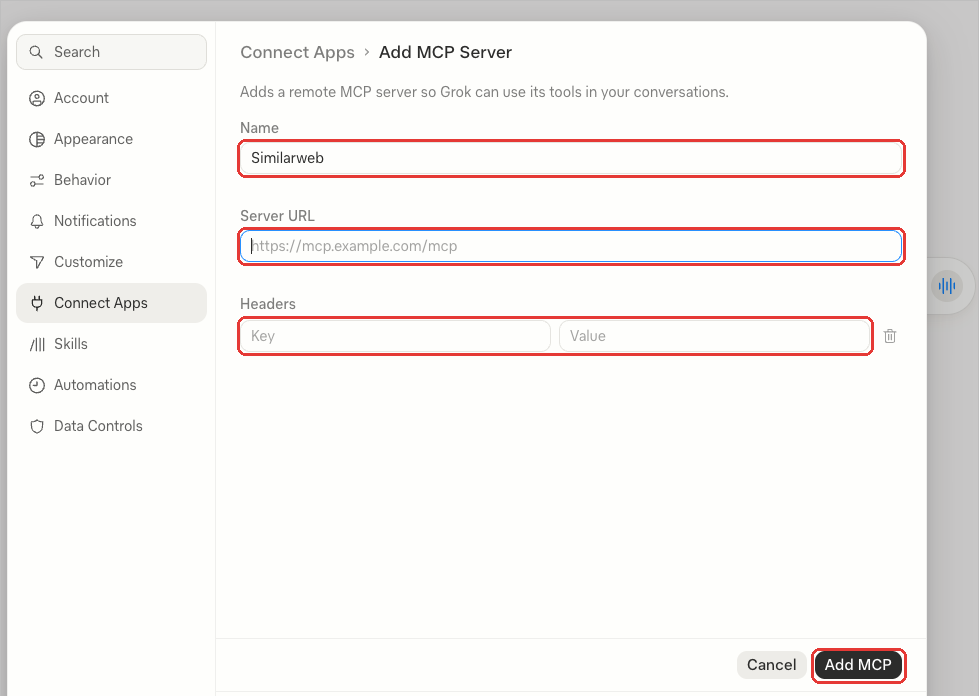
Field | Enter |
|---|---|
Name |
|
Server URL |
|
Headers, Key |
|
Headers, Value | Your Similarweb API key |
The header key must be api-key. Not Authorization, not Bearer. Then click Add MCP.
Step 4: Find your connector
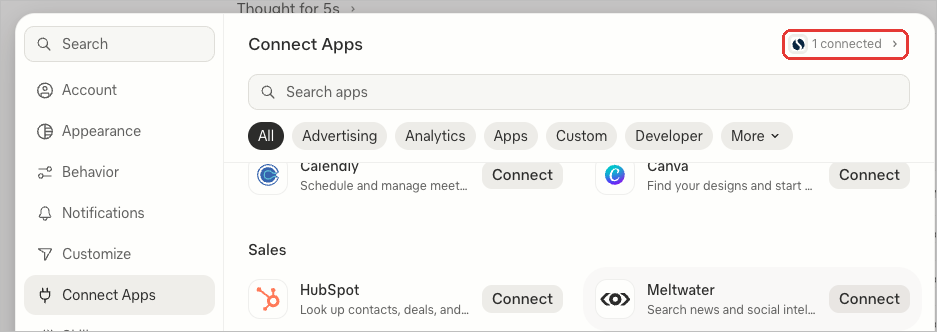
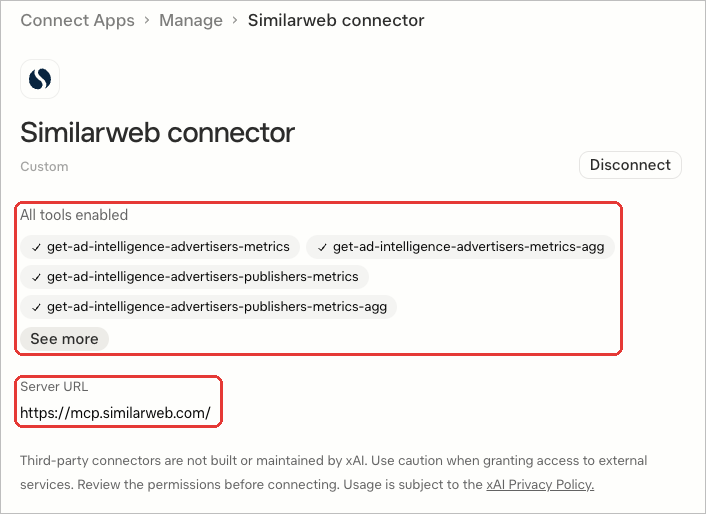
After you click Add MCP, return to the Connect Apps page. The top right corner shows the number of connected apps next to a small Similarweb logo. Click it to open the Similarweb connector. The page shows the server URL and the tools Grok can use. The tools listed depend on your Similarweb subscription.
Step 5: Run a small test
Start a new chat and keep the first prompt small: one domain, one metric, one month.
Use Similarweb to show total visits for example.com last month.
If Grok returns a number, the connection works.
Keep your API key secure
- Do not share your API key with anyone.
- Enter the key only in the connector's header field, as shown in Step 3. Do not paste it into prompts, shared documents or code repositories.
- Monitor your API usage to detect any unauthorized access.


On this page
- Grok MCP Integration